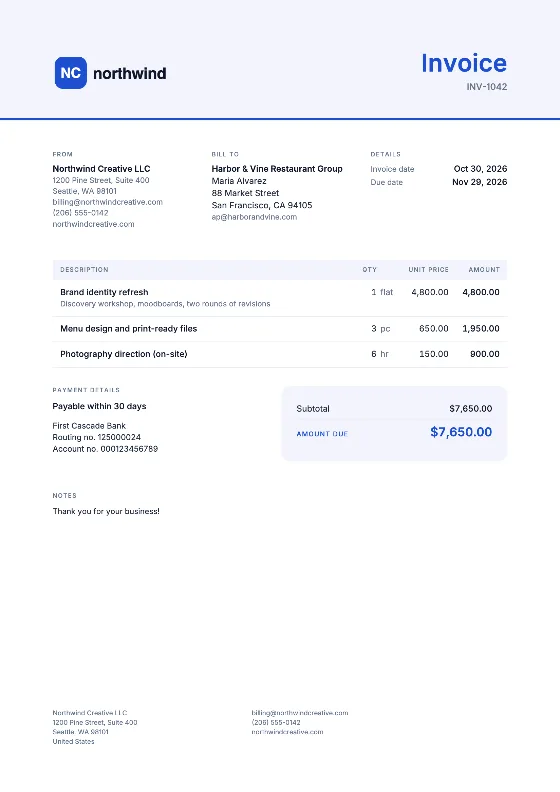
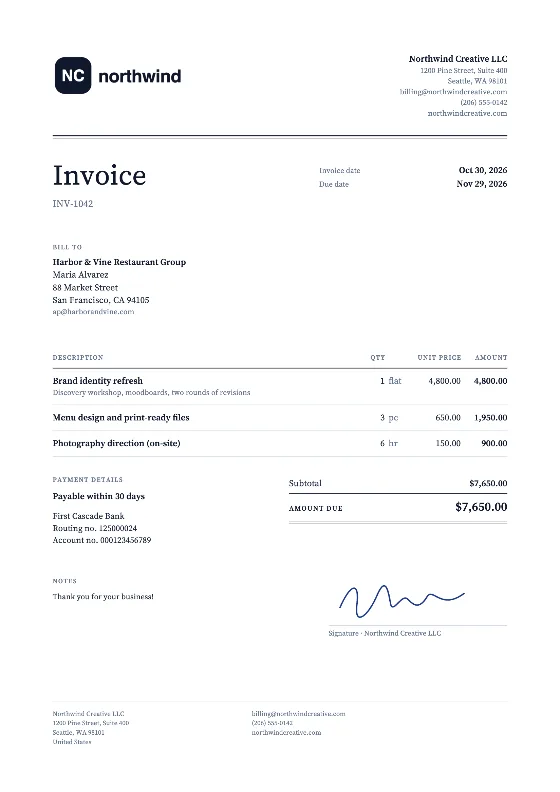
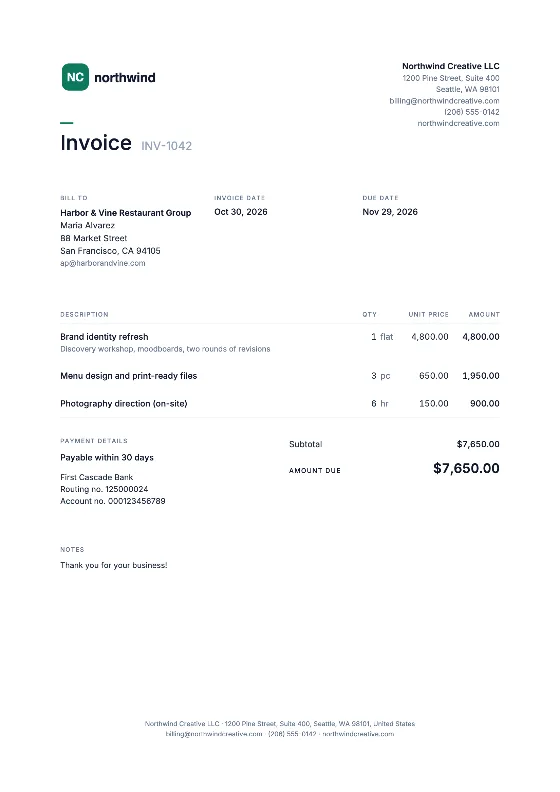
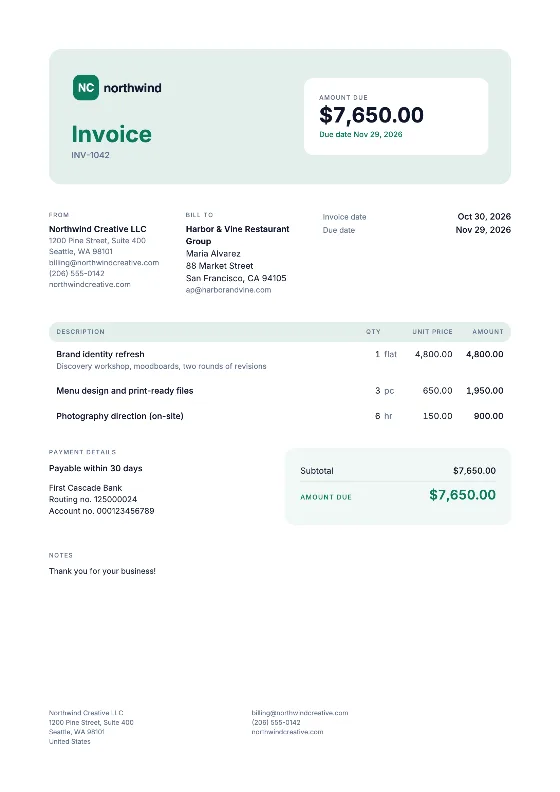
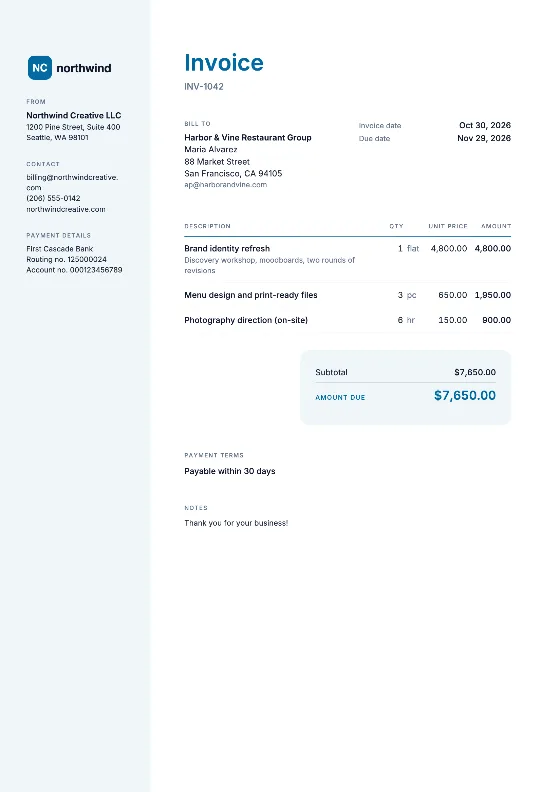
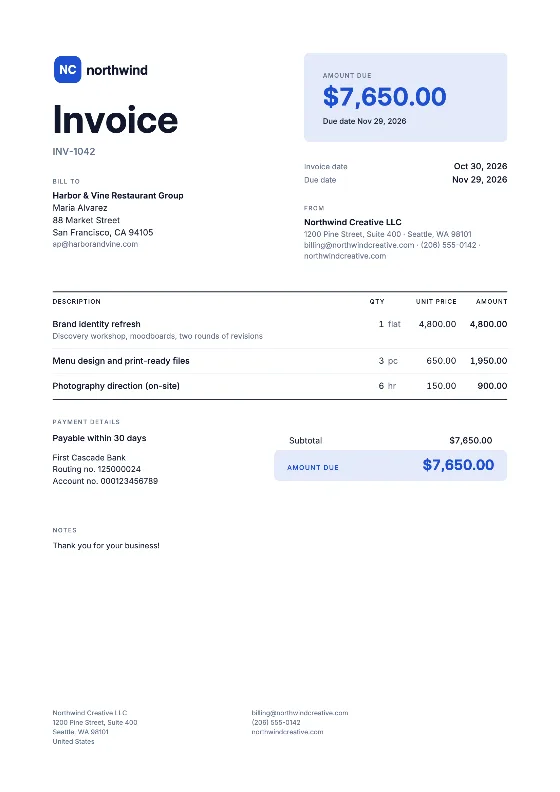
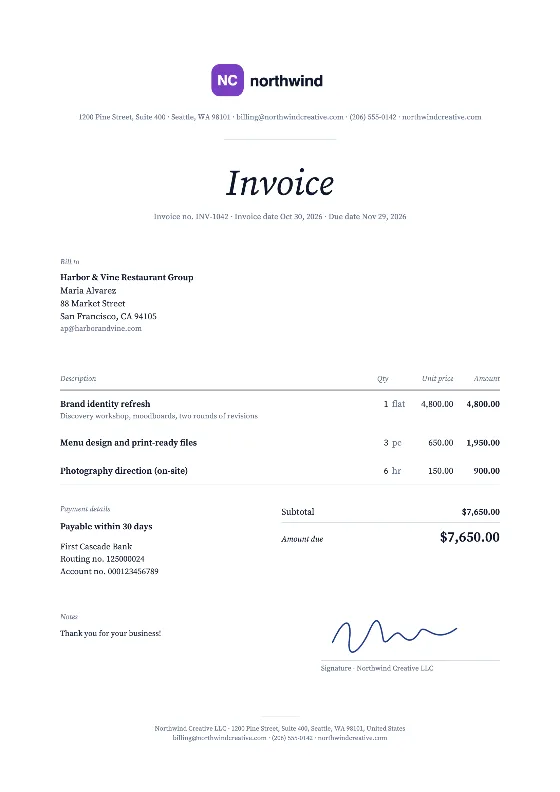
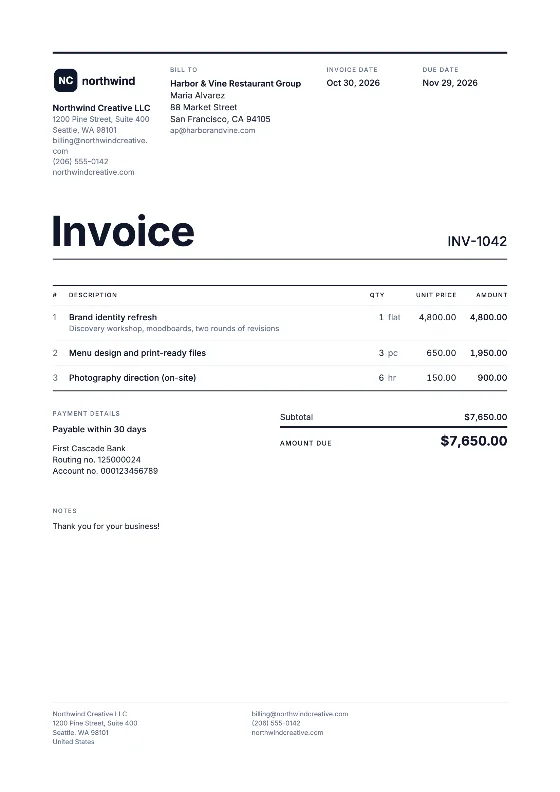
How to fill in the Word invoice template
- Download the DOCX from the button above and save a master copy in a folder you will not overwrite, for example “Invoices / Template”.
- Make a copy for each invoice. In Word, use File → Save As and name it after the invoice number, such as “INV-2026-015 Smith Co.docx”. Never edit the master.
- Add your logo. Click the top of the page, then Insert → Pictures and choose your logo file. Resize it by dragging a corner so it keeps its proportions.
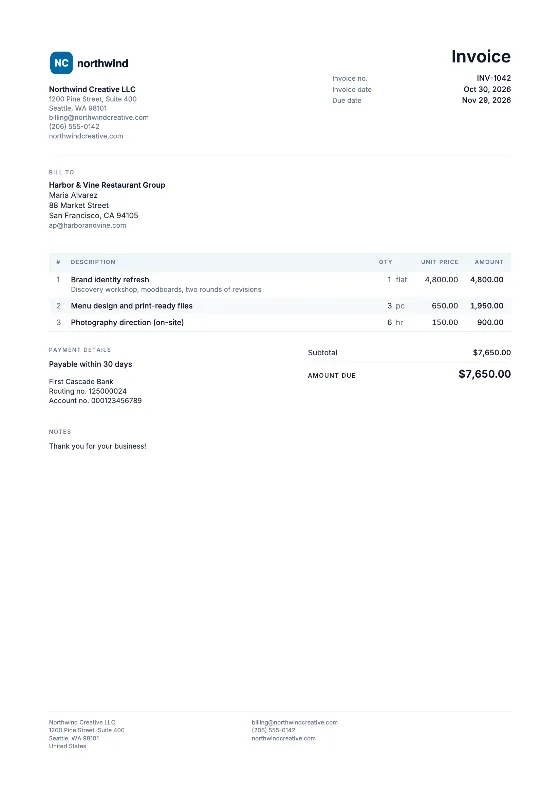
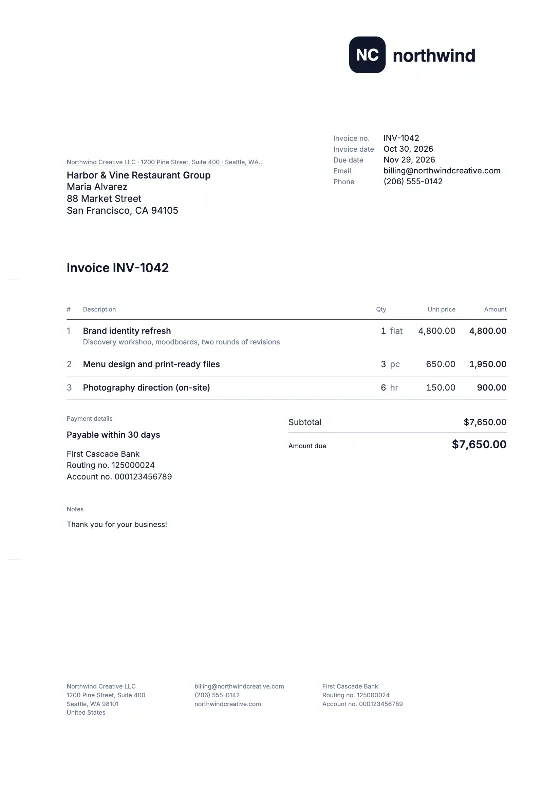
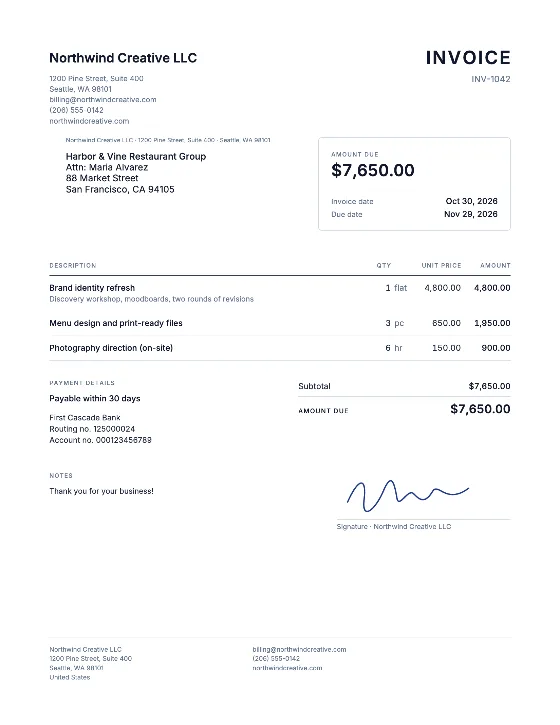
- Replace the fields. Click into each field, such as your business name, client address, invoice date and due date, and type over the placeholder text.
- Fill in the item table. One line per product or service. To add a line, click in the last row and press Tab at the end of it, or right-click and choose Insert → Insert Rows Below.
- Do the math. Multiply quantity by unit price for each line, add the lines, then add tax. Check the total twice: Word will not do it for you.
- Save as PDF. Use File → Save As (Windows) or File → Export (Mac) and choose PDF. Send the PDF, keep the DOCX.
Keep your invoice numbers in order
Word does not know which number you used last. Keep a short list in a notebook or spreadsheet, or name each file with its number so the folder itself shows the sequence. Every invoice needs a unique number, and many tax authorities expect them to be sequential. Our invoice numbering guide shows simple formats such as INV-2026-001.
A worked example
A consultant bills 12.5 hours at $90.00 = $1,125.00, plus a $60.00 travel charge. Subtotal $1,185.00. No sales tax applies to the service in her state, so the total due is $1,185.00. The due date is 30 days after the invoice date. Writing “Net 30” alone can confuse clients, so state the date as well: see payment terms.
When the online editor is easier
The Word template is fine for occasional invoices. If you invoice every week, the online invoice generator saves you the copying, numbering and arithmetic: it suggests the next number, warns about duplicates, adds up each tax rate and creates the PDF. It also remembers your clients. Prefer Google Docs? Upload this same DOCX as described on the Google Docs template page. Other formats are in the template library.